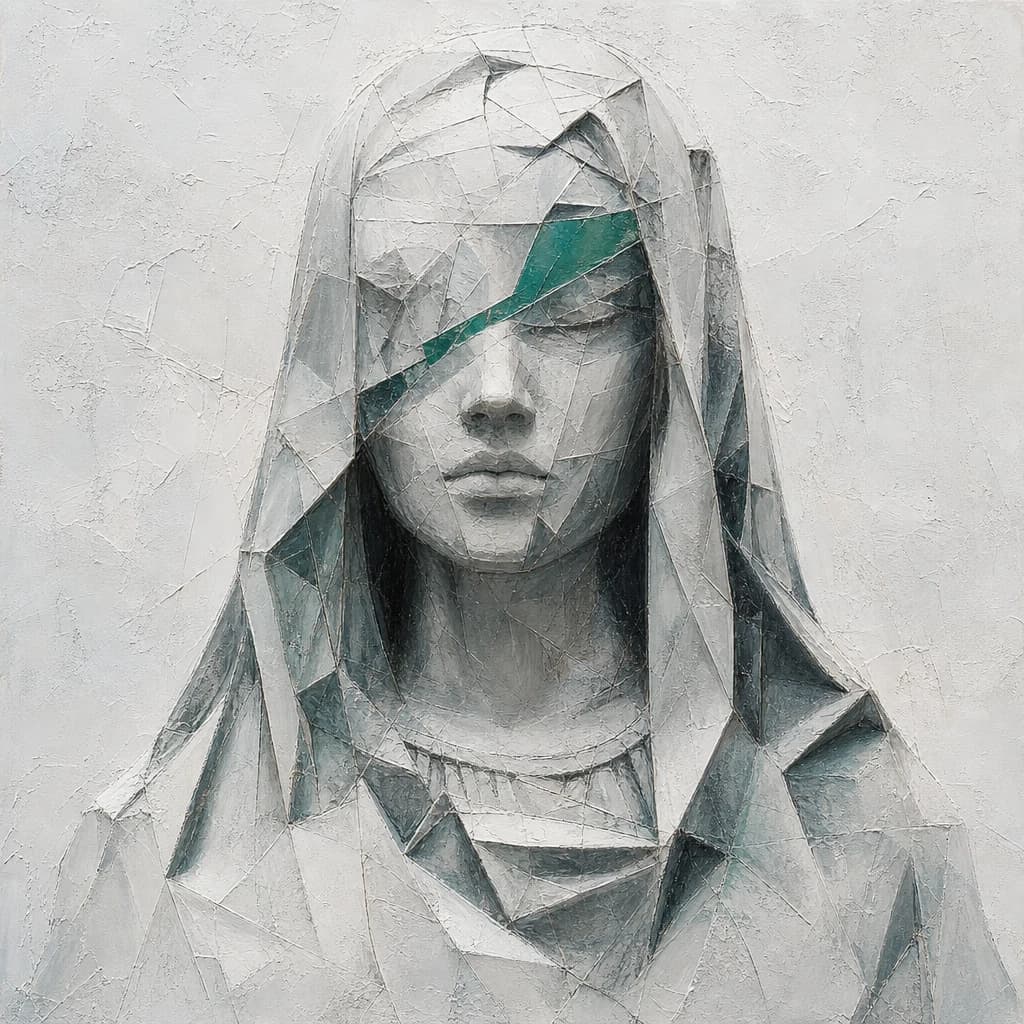
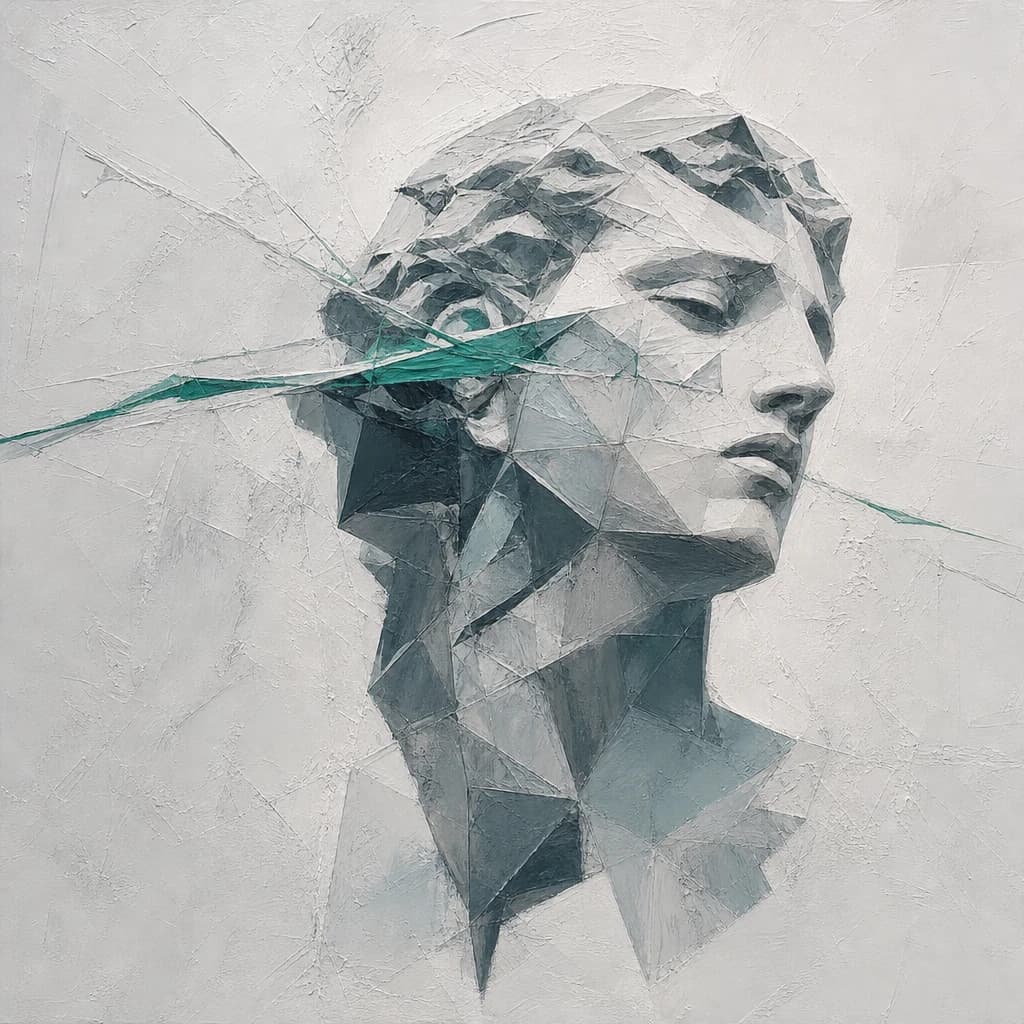
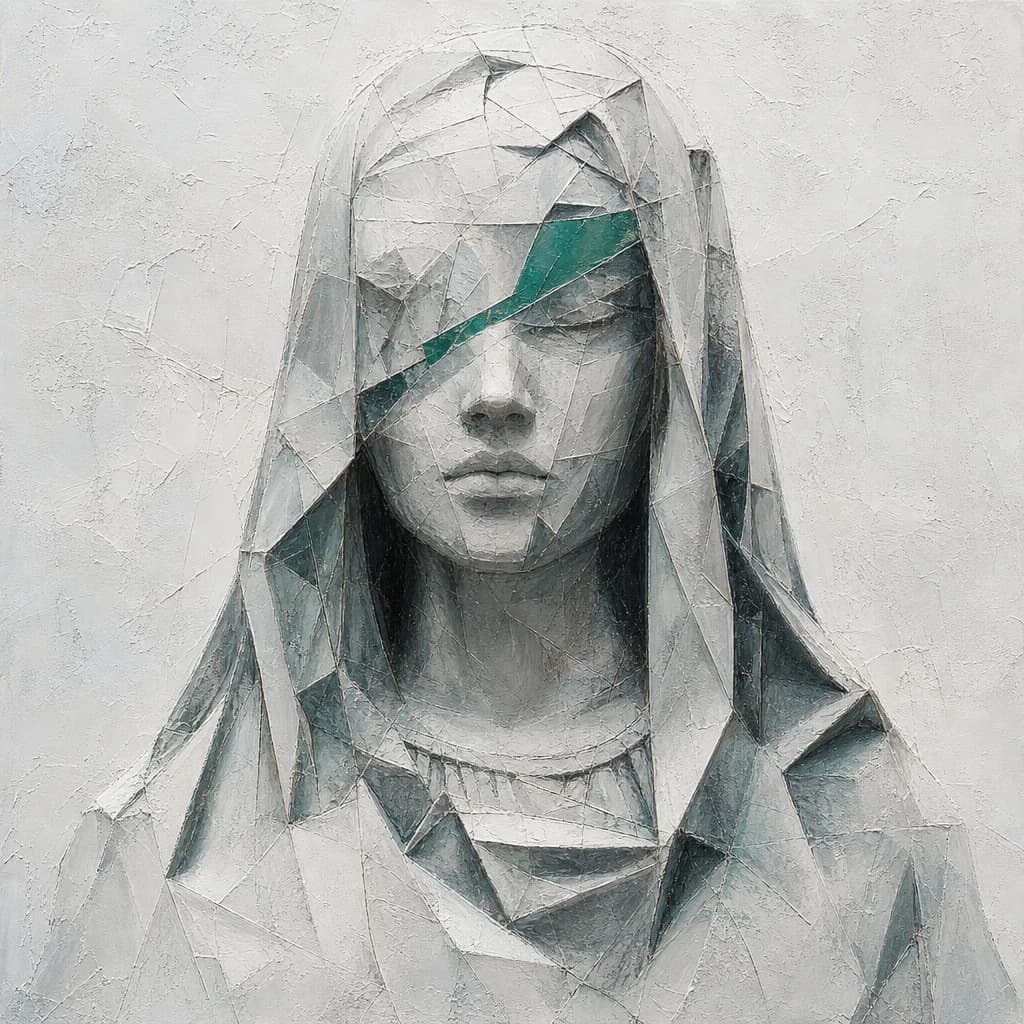
Plan edits with the Microsoft MAI Image 2.7 model. In the MAI Image API Playground, pair a source image with clear instructions for the scene, lighting, text, and details you want to retain.
MAI Image 2.7 API configuration
Specify what to change and which details to preserve.
Choose an image and describe the changes.
Start with your image and a precise editing goal. Use the editing workspace to separate requested changes from the composition, materials, and details that should stay the same.
Use these examples to organize an image-editing request with a source image and an editing prompt, then query the task to retrieve its result.
Save your APIMart API key in the APIMART_API_KEY environment variable. Send it as Authorization: Bearer <key> when submitting the edit and querying the task.
Send POST /v1/images/generations with model set to mai-image-2.7, an editing prompt, and image_urls containing one HTTP or HTTPS source-image URL. Read the task ID from data[0].task_id in the response.
Send GET /v1/tasks/{task_id} to query the task. When its status is completed, read the image URL from data.result.images[0].url[0]. If the status is failed, read the reason from data.error.message.
See the APIMart documentation for APIMart authentication and general API usage.
curl -X POST https://api.apimart.ai/v1/images/generations \
-H "Authorization: Bearer $APIMART_API_KEY" \
-H "Content-Type: application/json" \
-d '{
"model": "mai-image-2.7",
"prompt": "Place the product from this image on a marble kitchen counter in soft morning light, keeping its shape and label unchanged.",
"image_urls": [
"https://example.com/source-image.jpg"
]
}'import os
import time
import requests
API_BASE = "https://api.apimart.ai"
headers = {"Authorization": f"Bearer {os.environ['APIMART_API_KEY']}"}
# 1. Submit the generation task
payload = {
"model": "mai-image-2.7",
"prompt": "Place the product from this image on a marble kitchen counter in soft morning light, keeping its shape and label unchanged.",
"image_urls": [
"https://example.com/source-image.jpg"
]
}
resp = requests.post(f"{API_BASE}/v1/images/generations", headers=headers, json=payload, timeout=60)
resp.raise_for_status()
task_id = resp.json()["data"][0]["task_id"]
# 2. Poll the task until it finishes
for _ in range(200):
task_resp = requests.get(f"{API_BASE}/v1/tasks/{task_id}", headers=headers, timeout=30)
task_resp.raise_for_status()
task = task_resp.json()["data"]
if task["status"] == "completed":
print(task["result"]["images"][0]["url"][0])
break
if task["status"] == "failed":
raise RuntimeError(task.get("error", {}).get("message", "generation failed"))
time.sleep(3)
else:
raise TimeoutError(f"task {task_id} did not finish in time; continue GET polling with this task ID")TASK_ID="task_xxx" # replace with the task_id returned by the POST request
curl "https://api.apimart.ai/v1/tasks/$TASK_ID" \
-H "Authorization: Bearer $APIMART_API_KEY"| Parameter | Type | Required | Default | Description |
|---|---|---|---|---|
model | string | Required | Default: mai-image-2.7 | Model value used in this page’s example: mai-image-2.7. |
prompt | string | Required | Default: — | Describe the edits to make and the elements of the source image to preserve. |
image_urls | array | Required | Default: — | An array containing exactly one HTTP or HTTPS URL for the source image to edit. |
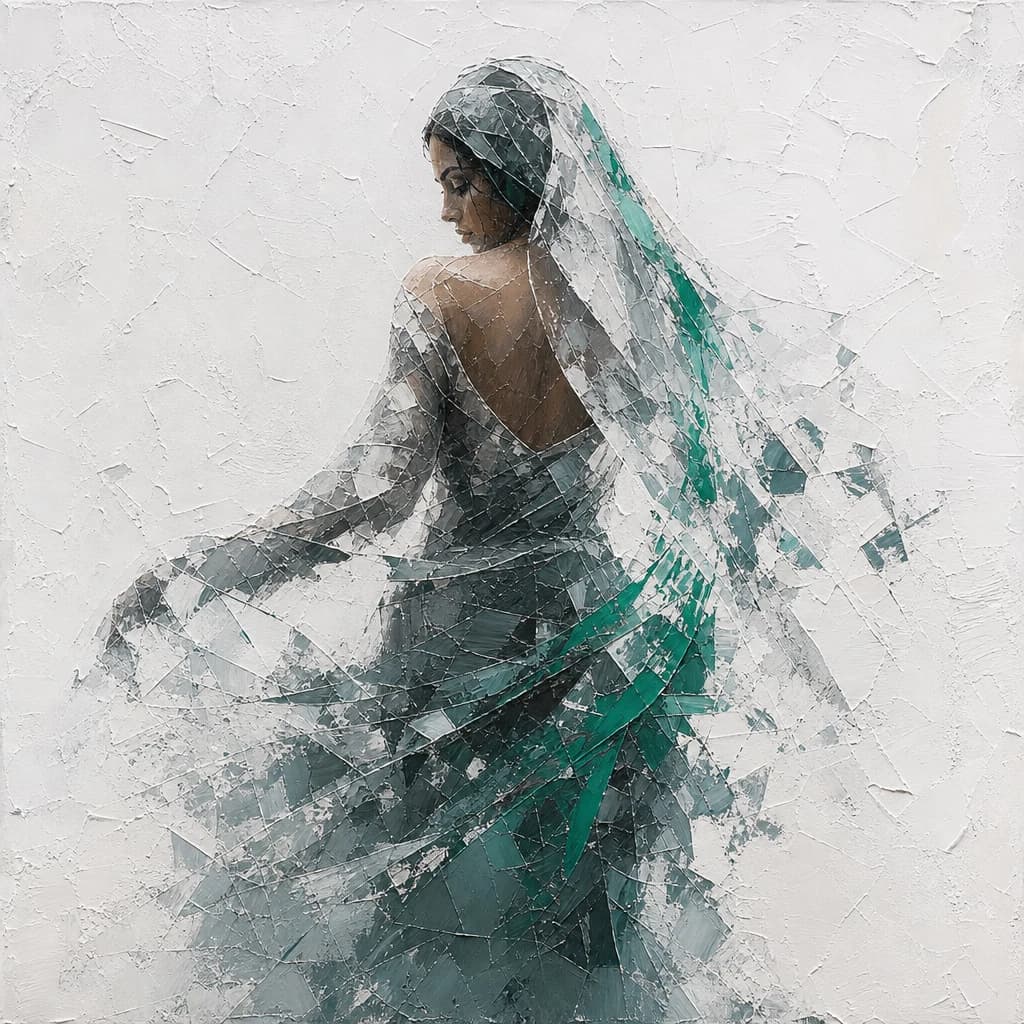
Organize the visual changes that matter to your image.
Prepare practical briefs for existing visual assets.
Review the image and instruction together in three steps.
Choose the original image from a local file or an HTTP/HTTPS image URL.
Describe the main change, then list the objects, text, textures, or regions that should stay the same.
Check the source and prompt in Form or JSON. Remove contradictory directions before refining the brief.
Source images, editing prompts, and workspace configuration.
MAI Image 2.7 is Microsoft’s image-editing model. This MAI Image API workspace organizes source images and instructions for scene, style, lighting, text, and restoration edits.
Choose a source image and describe the intended change in the mai-image-api prompt. Add explicit instructions for important details that should remain unchanged.
The MAI Image API workspace selects one source image from a local file or image URL. Replace the current source when preparing edits for a different image.
State the main change first in your API prompt, then describe the setting, lighting, and constraints. Prefer specific instructions over several conflicting goals.
In the API prompt, name the product shape, facial features, materials, lettering, or regions to retain. These are editing directions, not guarantees of exact preservation.
Describe the new surroundings in your MAI Image API brief while specifying the subject’s position and scale. Include contact shadows and perspective to clarify the desired relationship.
For MAI Image API, describe light direction, softness, color, and mood. Mention which shadows and reflections should change and which parts should remain visually consistent.
Describe the desired medium, colors, and texture in your MAI Image API prompt. Identify the subject, pose, and composition to retain rather than relying on a vague style label.
Put the exact replacement text in quotes in your API prompt. Identify its location and surface; spelling, alignment, and legibility still need careful review.
Tell Microsoft MAI Image API which scratches, fading, or artifacts to address. Specify the facial features, textures, materials, and original scene elements that should remain intact.
Use clear relative positions in your MAI Image API prompt: left, behind, touching, or overlapping. Include scale, perspective, and the surrounding objects that define the placement.
The MAI Image API workspace lets you select a local image or enter an HTTP/HTTPS image URL. Use an address pointing to the image asset, not a webpage.
Form and JSON describe the same MAI Image API draft. Valid JSON updates the form; invalid edits show a message while retaining the edited text and previous form draft. The mai-image-2.7 value is this page’s configuration ID.
Reset clears the current source image and editing prompt in the MAI Image API workspace and restores the initial configuration. Copy any instructions you want to keep first.
The names used in this page’s headings are spelling variants, not API request identifiers. MAI Image 27, MAIImage 2.7, and MAI-Image2.7 are search spellings, not separate models or API IDs. Here, mai-image-2.7 is the page’s configuration ID; verify request identifiers against the relevant API documentation.
Sign in to APIMart and open API Keys using the entry at the top of this page. Create and manage your APIMart API key there, and consult the relevant API documentation for authentication and request identifiers.
Explore more models in the same category.

Hy Image V3.5 Preview
HY Image 3.5 Preview is an image generation and editing model developed by Tencent Hunyuan. It supports text-to-image creation, reference-based generation, and multi-turn editing, allowing users to refine images through conversational instructions. With support for up to 4K output and flexible image dimensions, it offers a versatile tool for creating and refining visual content.

Flux 3 Image Klein
FLUX 3 Image Klein is a compact, open-weight image generation and editing model developed by Black Forest Labs. It combines text-to-image creation, image editing, and composition using up to 10 reference images in a single model. With support for up to 4K resolution and bounding-box layout control, it gives creators flexible tools to bring their ideas to life.

Mai Image 2.6
MAI-Image-2.6 is Microsoft's image model for text-to-image, single-image editing and composition with up to 5 reference images. It is available in high-quality and Flash versions, with 1K and 2K output and sharp text rendering.

Mai Image 2.6 Flash
MAI-Image-2.6 Flash is the Flash version of Microsoft MAI-Image-2.6 for text-to-image and image editing with up to 5 references, 1K/2K PNG output and optional Bing grounding, billed by actual token usage.